Tabletop exercises
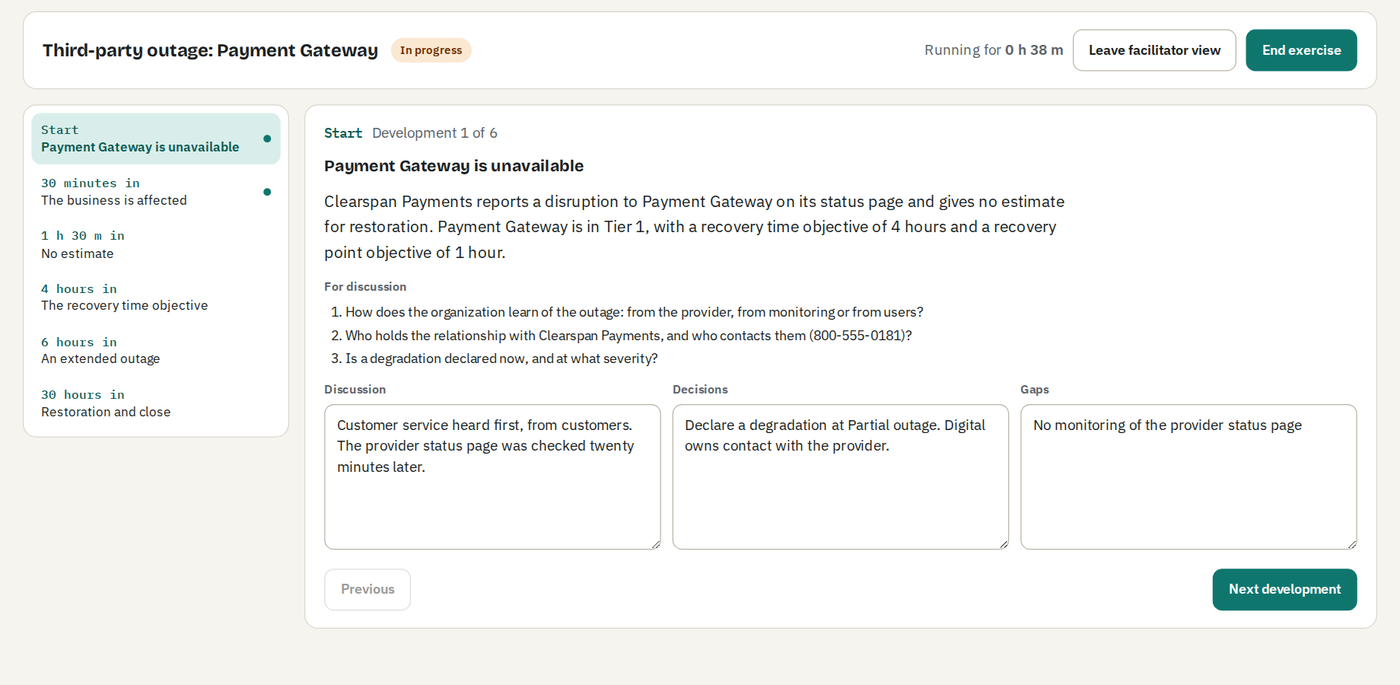
A tabletop exercise is a facilitated discussion of a scenario that develops over time. Nothing is switched off.
- Under Continuity, Tabletop exercises, select Plan a tabletop exercise. Choose a scenario and the record at the center, and set the date, facilitator, participants and objectives. EA Sphere proposes a record suited to the scenario, and standard objectives when none are entered.
- EA Sphere writes the scenario from your records: a timeline of developments, each with three discussion questions. It draws on the record's recovery tier and objectives, the records and business functions that depend on it, the audiences to notify, its support path and restoration path, the incident roles and the conference bridge. For a system failure or the loss of a facility, it adds a complication drawn from what the map shows, such as a change in progress (the work item is shown to each person as they can see it in Jira), vendor support that has ended, a tier gap, a sequence conflict or a record overdue for review. When the map shows none of these, the complication is a restoration from the most recent backup. The other scenarios build to complications of their own. Telephone numbers in developments, questions and the scenario facts table, in those forms, are kept on one line in every view. Until the exercise starts, developments can be edited, added or removed, and the scenario can be regenerated from current records. Each development keeps its identity when edited, so changes two people make to different developments at the same time are both kept; an edit to a development someone else has removed is refused with a message, and so is an edit to an objective someone else has removed: “That objective was removed by someone else.” Once the exercise has started, its plan cannot be changed, and EA Sphere says so if someone tries.
- Download the facilitator guide: objectives, ground rules, scenario facts and every development with its questions.
- Select Start exercise to open the facilitator view. Move through the developments and record discussion, decisions and gaps against each one. Notes are saved as they are typed, up to 12,000 characters in each box. Each facilitator keeps their own notes, so co-facilitators never overwrite each other; notes from others appear below your own and are combined in the report.
- Select End exercise to assess each objective as met, partly met or not met and to record what went well and what to improve. Every gap recorded is proposed as a follow-up action. Follow-up actions are created as Jira work items in the mitigation space set under Settings, Jira, or as work items in EA Sphere when none is set, and remain linked to the exercise.
An exercise is completed once: if someone else completes it first, nothing of your completion is recorded; the dialog is held, with Ending…, while, as a separate edit within the 20,000-character limit, your review notes are added to the recorded review and your results are recorded for objectives that have none yet, so results someone else chose are never taken for none chosen, and then closes. EA Sphere says “Someone else completed this tabletop exercise first, so it was not completed again.”, or, when it was you in another window, also one that finds the exercise already completed before it sends anything, “You already completed this tabletop exercise in another window.”, and says that your notes and results were added only once it has recorded them. If they cannot be added, the dialog stays open with what you typed, as for a recovery exercise, and selecting End exercise again adds them once. It keeps the results already recorded, and creates no follow-up actions a second time; when several people complete it at once, everyone's notes are kept in this way.
An end sent again after a lost connection is recognized as your own in the same way as for a recovery exercise; objective results chosen since are recorded, and results someone else recorded are kept, and EA Sphere says so. As for recovery exercises, review notes are never cut short: a review longer than 20,000 characters is refused, and notes from someone ending a moment after someone else are added only while the review stays within that length. When their notes are left out for that reason, their objective results are still recorded where none had been chosen, and EA Sphere says both.
- The report sets out the objectives and their results, the discussion at each development, the review and the current status of every follow-up action. Print it or download it. A completed exercise keeps its record: its review and objective results can be updated, and only a Jira administrator can delete it. When two people change the same review text at once, the later save is refused, as for recovery exercises. The dialog then shows what is saved now under each field the other person changed: a field you had not changed takes the saved text and says it was updated to what someone else saved a moment ago; a field in which you and they changed different words holds both changes, with the saved text below it under Your changes were combined with what someone else saved a moment ago; and a field in which you both changed the same words keeps your text, with the saved text below it under Saved now by someone else. Review the fields and save again.
| Scenario | What it tests |
|---|---|
| System failure | Declaring a degradation, the impact on business functions, engaging support and the restoration order. |
| Cyber attack | Isolation decisions, coordination when email and Jira may be compromised, evidence, notification and ransom decisions, and restoring from clean backups. |
| Loss of a facility | Standby arrangements, controlled shutdown and restart in sequence. |
| Third-party outage | The provider relationship, contract terms, manual procedures and reconciliation of data. |
| Network or carrier failure | Failover, reaching staff without the usual channels and escalation with the carrier. |
| Building inaccessible | Accounting for staff, remote working and the decision to move to an alternate site. |
| Key team unavailable | Cover for the owning team, access to documentation and credentials, and single points of knowledge. |
How often a tabletop exercise is due is set under Settings, Continuity. Planned and completed exercises appear on the calendar; an overdue exercise and open follow-up actions appear on the dashboard and under Known risks and constraints in the continuity package.